

Visits and payments3 min
Take payment, invoice and refund a visit
Add services and discounts, record full or part payments, issue a ZATCA tax invoice, and refund with a credit note.
Visits in the menu shows every visit: what it costs, what’s been paid, and its invoice. Every booking becomes a visit.
Step by step
- 1Step 1
Open Visits
From the menu, open Visits.
- 2Step 2
Read the list
Each row is one visit: the client, date, services and who does them, the total, the balance due, and the payment and visit status.
- 3Step 3
Filter by payment
The tabs filter by Unpaid, Partly paid, Paid or Refund due, with a count on each.
- 4Step 4
Narrow it down
Filter by period or team member, or search for a client by name or phone.
- 5Step 5
Reach a visit from a booking
In Appointments, open the booking. Its Visit & payment card lists every service, the total, and what’s still due.
- 6Step 6
Open the visit
Click Open visit to see the whole visit.
- 7Step 7
Read the visit
At the top is the client and status. On the side, the balance due, the amount paid, and the totals.
- 8Step 8
Work with each service
Each service shows its time, length, team member, price and status. Its buttons reschedule it, mark it complete or a no-show, or remove it.
- 9Step 9
Add a service
Click Add service, pick it, then a team member and a time on the visit’s day.
- 10Step 10
Add extra charges
Add extras charges an add-on with a service, like extra-long hair, or any custom amount.
- 11Step 11
Give a discount
Add discount takes off an amount or a percentage. The reason is printed on the invoice.
- 12Step 12
Apply a loyalty reward
With loyalty on, Apply reward uses the client’s points against the bill. The client confirms with a code sent to their phone.
- 13Step 13
Record payment
Click Record payment and choose cash, card or bank transfer. Pay part now, and the visit shows as partly paid.
- 14Step 14
Complete the services
When a service is done, click its tick and mark it complete, or a no-show. Completed services earn loyalty points.
- 15Step 15
Take the rest
Record the rest of the payment, and the visit is fully paid.
- 16Step 16
Issue the invoice
Click Invoice to see the tax invoice, then issue it. It gets its number and a ZATCA QR code, and you can print it.
- 17Step 17
Refund with a credit note
An issued invoice can’t be edited. To give money back, credit the service. A credit note is issued, and you can refund the client straight away.
- 18Step 18
Check it in Visits
Back in Visits, the visit shows as paid, with its invoice number.
Questions
Can a client pay part now and the rest later?
Yes. Record the part payment, and the visit moves to Partly paid until you record the rest.
How do I use a gift card to pay?
In the visit, click Redeem gift card. See Gift cards.
Related guides
 2:05
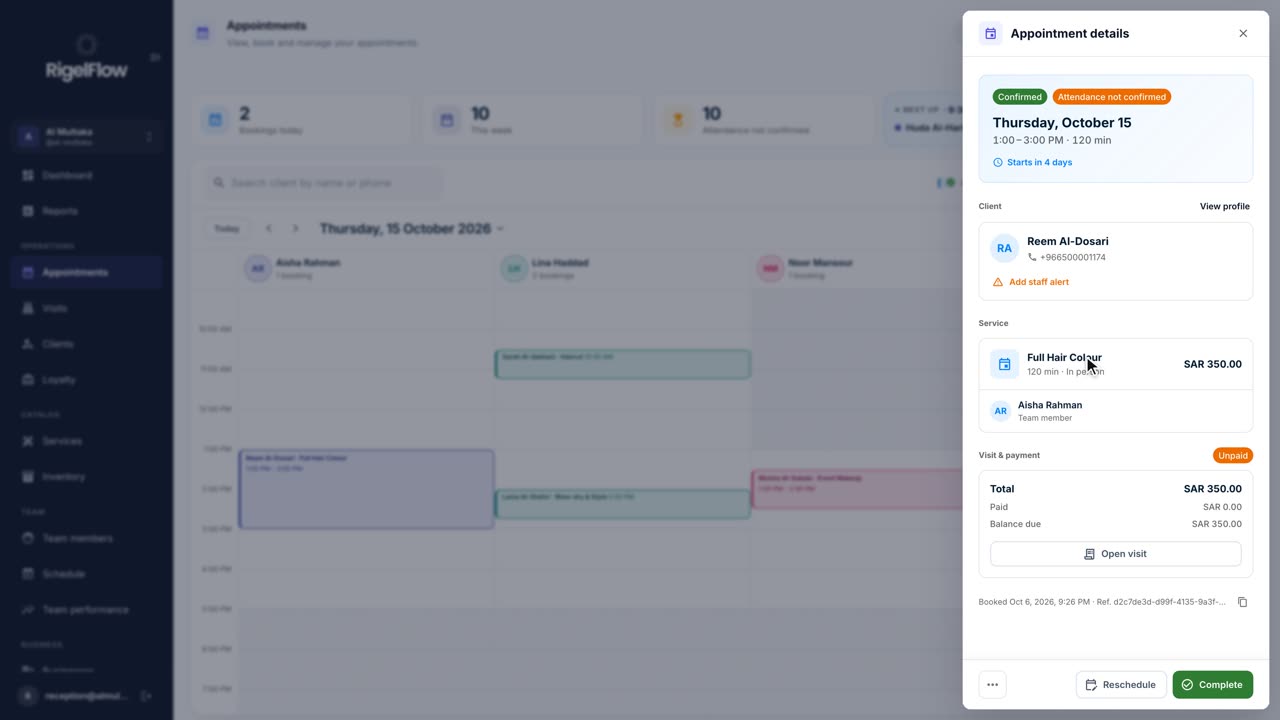
2:05Bookings and calendar2 min
Manage appointments in the calendar
See your day at a glance, switch between calendar, stylist and list views, and reschedule, complete or cancel any booking.
Watch the guide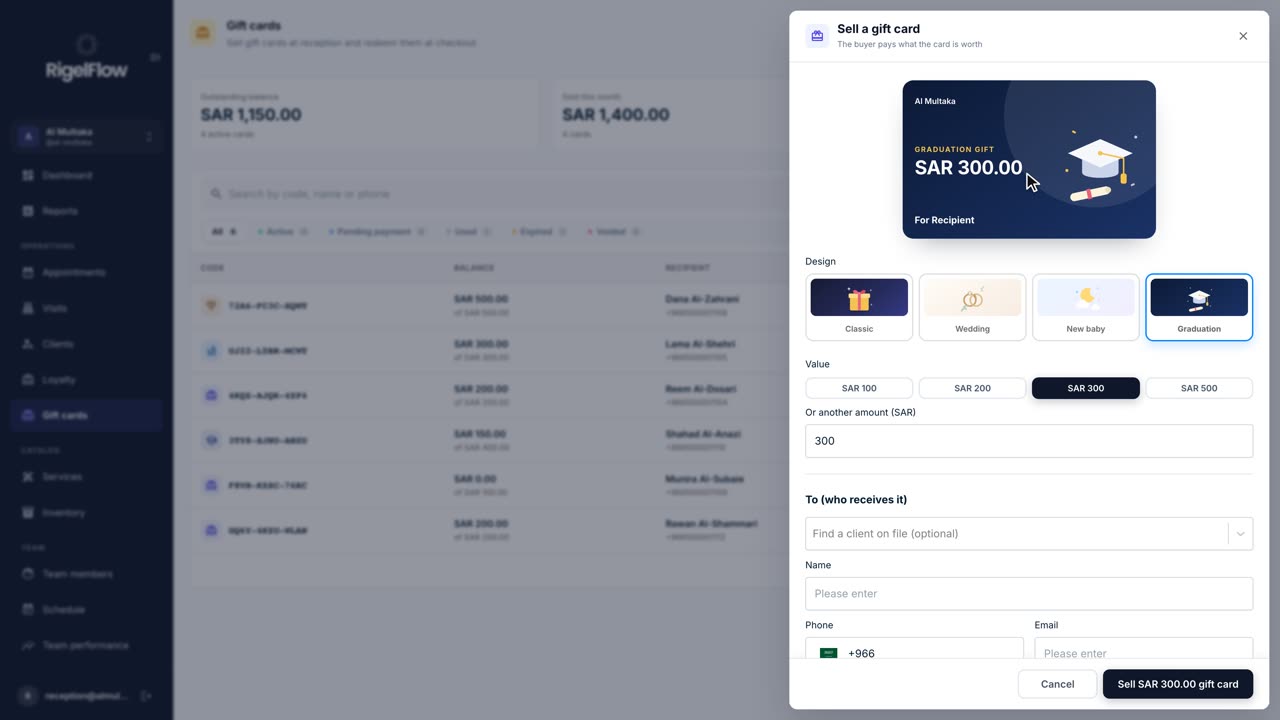 1:55
1:55Gift cards and packages2 min
Sell and redeem gift cards
Sell a gift card in any design and amount, send it on WhatsApp, and use it to pay for a visit at checkout.
Watch the guide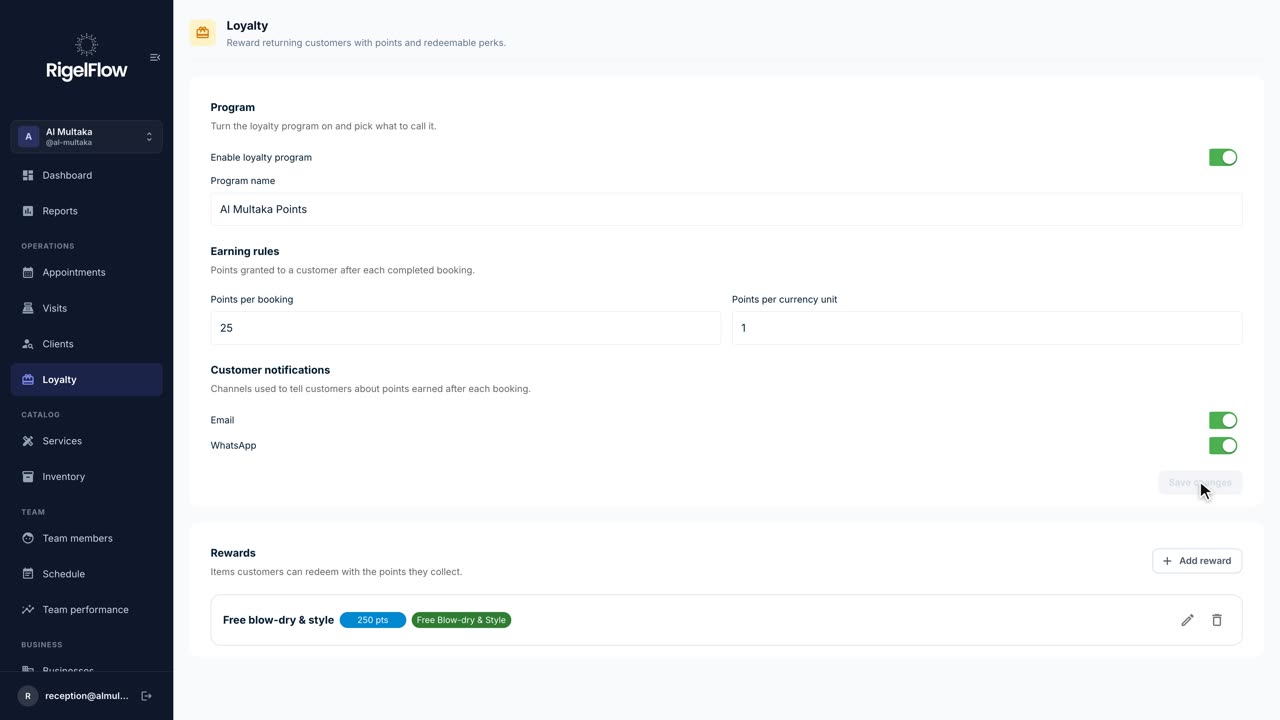 1:12
1:12Clients and loyalty1 min
Reward regulars with loyalty points
Turn on a points program, decide how clients earn, create rewards, and redeem points at checkout.
Watch the guide