

Manage appointments in the calendar
See your day at a glance, switch between calendar, stylist and list views, and reschedule, complete or cancel any booking.
Appointments is your daily workspace: who’s coming, who’s working, and what still needs attention.
Step by step
- 1Step 1
Open Appointments
From the menu, open Appointments.
- 2Step 2
Check the summary
At the top: today’s bookings, this week’s total, visits still waiting for attendance to be confirmed, and who’s next.
- 3Step 3
Use the calendar
The calendar shows the whole team by day, week or month. To see one stylist, click Deselect all, then tick that stylist.
- 4Step 4
Switch to the Stylists view
Every stylist gets their own column for the day. Striped hours mean they’re not working. Use the arrows to move between days.
- 5Step 5
Filter the team
Scheduled team shows only who’s working that day. All team shows everyone.
- 6Step 6
Open a booking
Click any booking to see the client, the service and stylist, and what’s been paid. From here, reschedule it, complete it, mark a no-show, or cancel it.
- 7Step 7
Use the list view
The List view shows every appointment, with tabs for upcoming, past and cancelled ones.
- 8Step 8
Book from an empty slot
Click an empty time in a stylist’s column. The booking opens with that stylist and time set. Click Add services and pick the service.
- 9Step 9
Add more services or repeat
Add a second service and choose its time, and add extras to any service. For regular visits, turn on Repeat.
- 10Step 10
Find the client
Search by name or phone. If they have a staff alert, like sensitive skin, you’ll see it before you book.
- 11Step 11
Add a note and choose messages
Add a note if you need to, choose whether to send the WhatsApp confirmation and reminders, and how to verify the booking.
- 12Step 12
Book the visit
Click Book visit, and it appears in the stylist’s column straight away.
Related guides
 1:26
1:26Bookings and calendar1 min
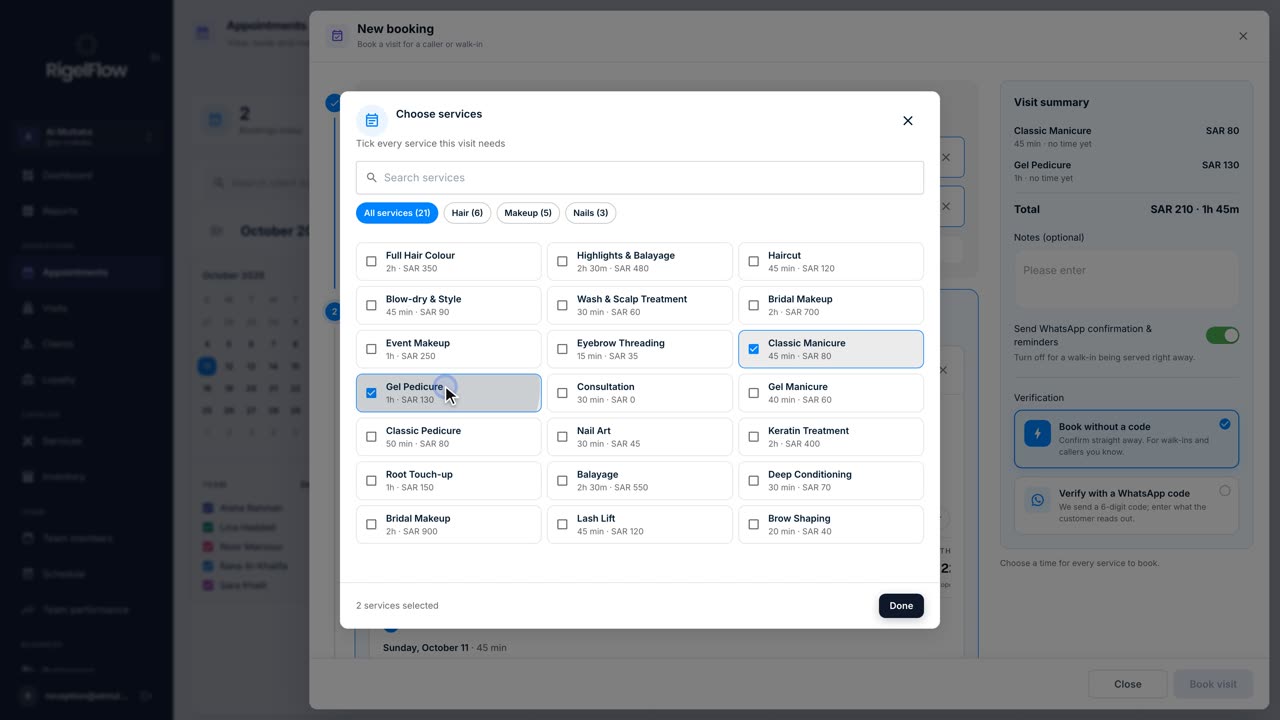
Make a new booking
Book one or more services for a client, pick the team member and time, set up repeat visits, and send the WhatsApp confirmation.
Watch the guide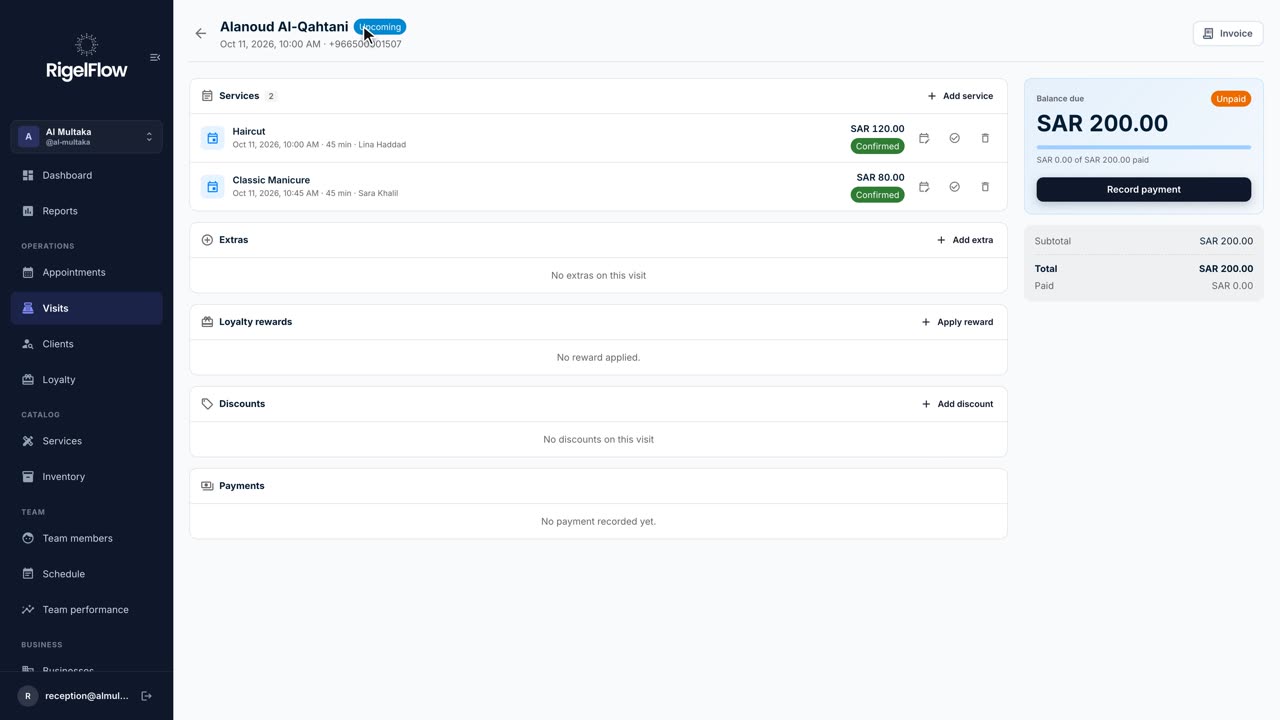 2:46
2:46Visits and payments3 min
Take payment, invoice and refund a visit
Add services and discounts, record full or part payments, issue a ZATCA tax invoice, and refund with a credit note.
Watch the guide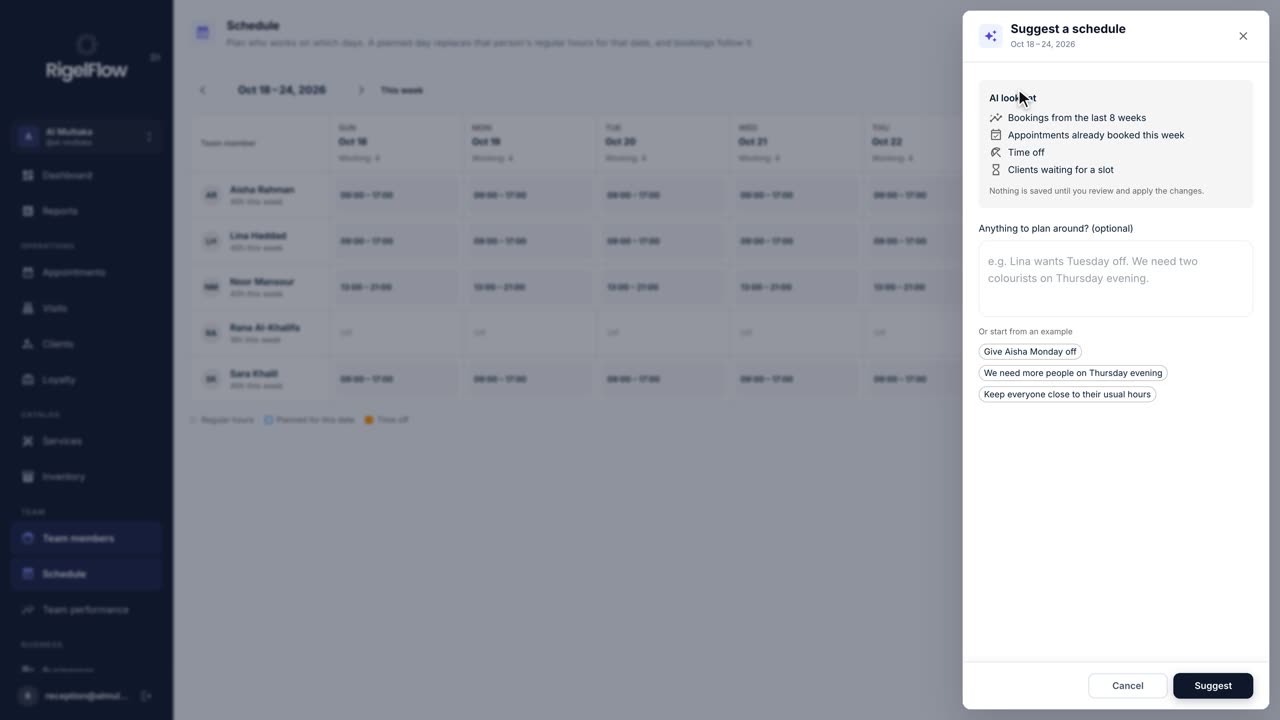 1:51
1:51Bookings and calendar2 min
Plan your team’s schedule with AI
Plan who works each day, give time off without leaving bookings stranded, and let AI suggest a week that fits your bookings.
Watch the guide