

Make a new booking
Book one or more services for a client, pick the team member and time, set up repeat visits, and send the WhatsApp confirmation.
You can book from Appointments with the New booking button, or by clicking any free time in the calendar.
Step by step
- 1Step 1
Open Appointments
Once you’re signed in, open Appointments from the menu.
- 2Step 2
Read the calendar
At the top you’ll see today’s bookings and who’s next. Below, the calendar shows the whole team by day, week or month.
- 3Step 3
Show one person’s schedule
In the team list, untick the others, and the calendar shows only their bookings.
- 4Step 4
Add services
Click New booking, then Add services, and pick one or more. The summary on the side adds up the price and the time.
- 5Step 5
Add extras
Each service has its own extras, like Express service, added with one click.
- 6Step 6
Pick who and when
Pick a team member, then the day and time. A second service is placed straight after. To change it, click Change and pick another time.
- 7Step 7
Repeat for regulars
Turn on Repeat, choose how often and how many visits. Every date is checked, and any clash is flagged so you can move it or skip it.
- 8Step 8
Choose the client
Search for an existing client, or type a new client’s name and mobile number.
- 9Step 9
Confirm and verify
The WhatsApp switch sends the confirmation and reminders. Turn it off for a walk-in. Then book without a code, or verify the client with a WhatsApp code.
- 10Step 10
Book
Click Book, and the visits show up in the calendar.
Related guides
 2:05
2:05Bookings and calendar2 min
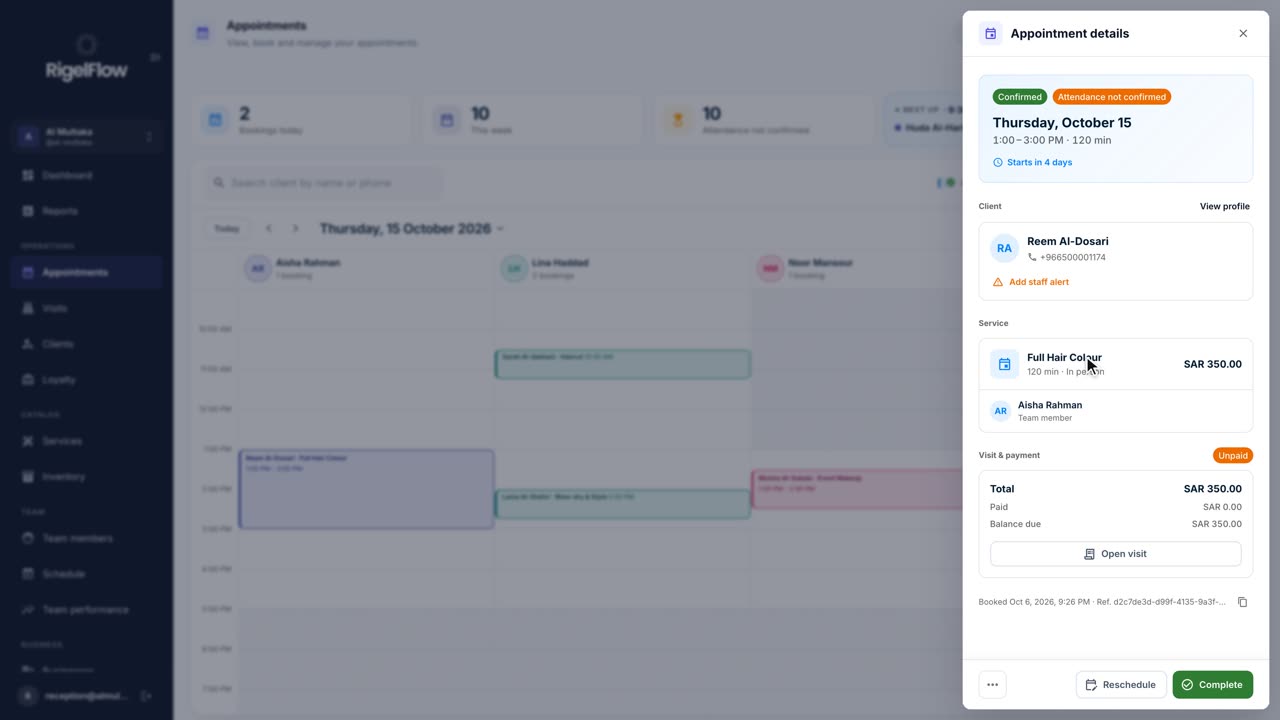
Manage appointments in the calendar
See your day at a glance, switch between calendar, stylist and list views, and reschedule, complete or cancel any booking.
Watch the guide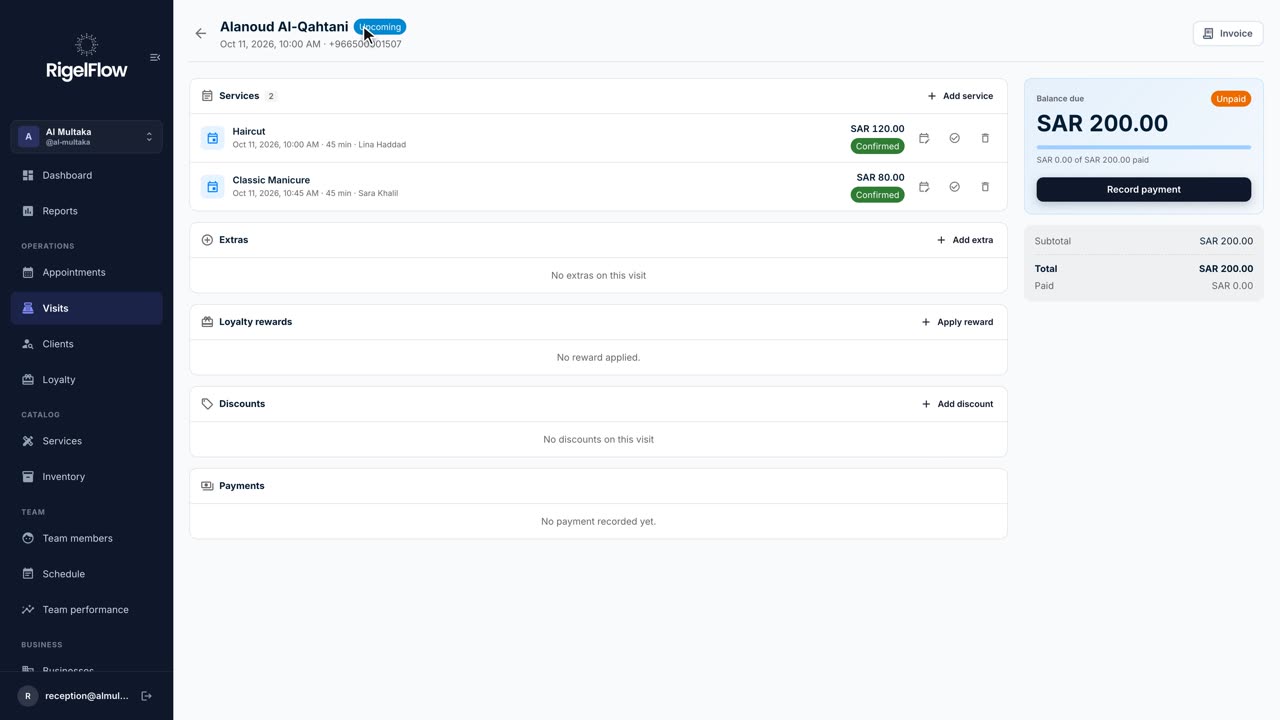 2:46
2:46Visits and payments3 min
Take payment, invoice and refund a visit
Add services and discounts, record full or part payments, issue a ZATCA tax invoice, and refund with a credit note.
Watch the guide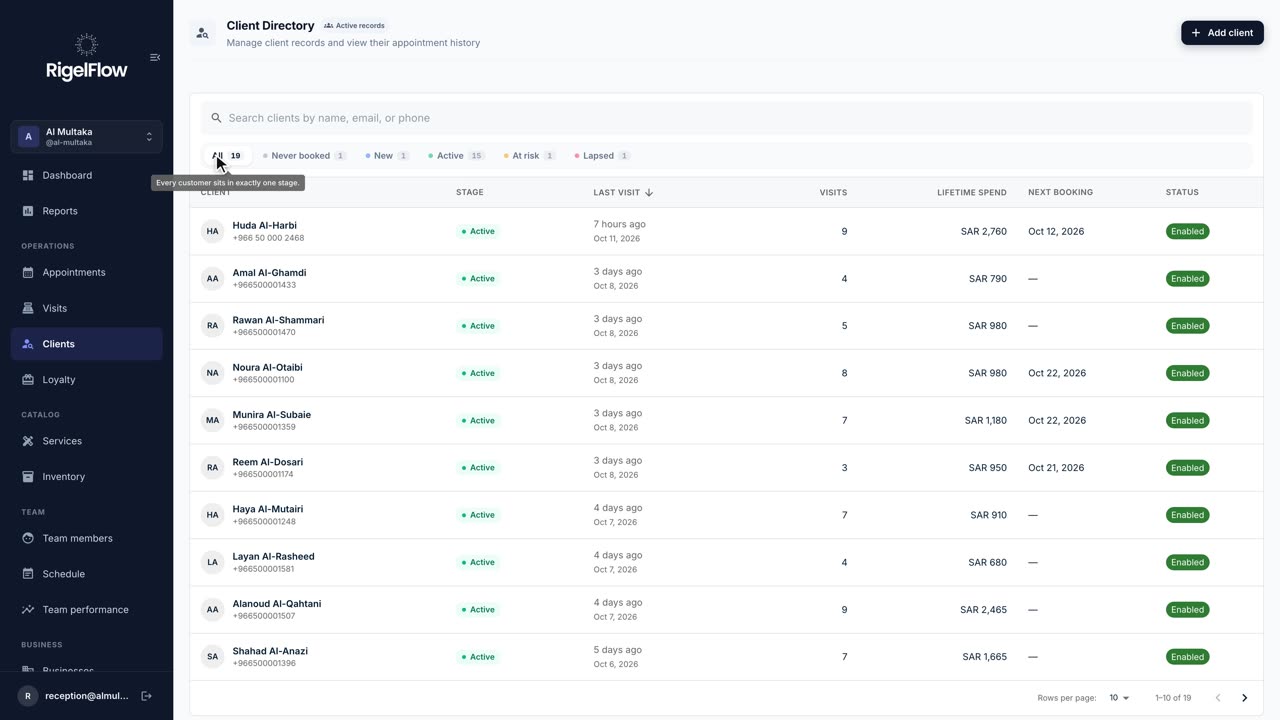 1:23
1:23Clients and loyalty1 min
Find and manage your clients
See every client’s stage, spend and history, add staff alerts for allergies, and find who to win back.
Watch the guide