

Set up your business1 min
Add team members and set their hours
Invite your staff, choose their roles, and set the working hours and time off that decide when clients can book them.
Team members in the menu lists everyone who works in your business. Each row shows their specialty, roles, status, and any time off coming up.
Step by step
- 1Step 1
Open Team members
From the menu, open Team members.
- 2Step 2
Read the list
Each row shows a person’s specialty, roles, status, and upcoming time off.
- 3Step 3
Invite someone
Click Add team member and enter their name, email and title. They get an email invitation to sign in. Choose their roles, and turn off Customers can book this person for staff like a receptionist.
- 4Step 4
Open their page
Click a team member to open their page. You can deactivate someone who has left, and their history stays.
- 5Step 5
Set their working hours
Availability sets their regular hours for each day. Add a second window for a split shift, and switch off the days they don’t work.
- 6Step 6
Block time off
Time off blocks out holidays and sick days, so clients can’t book them on those dates.
- 7Step 7
See their services
Hosted services lists every service they offer. You change these from the Services page.
- 8Step 8
Complete their profile
Profile holds their details and bio for the booking page, their roles, whether clients can book them, and the branches they work at.
Related guides
 1:51
1:51Bookings and calendar2 min
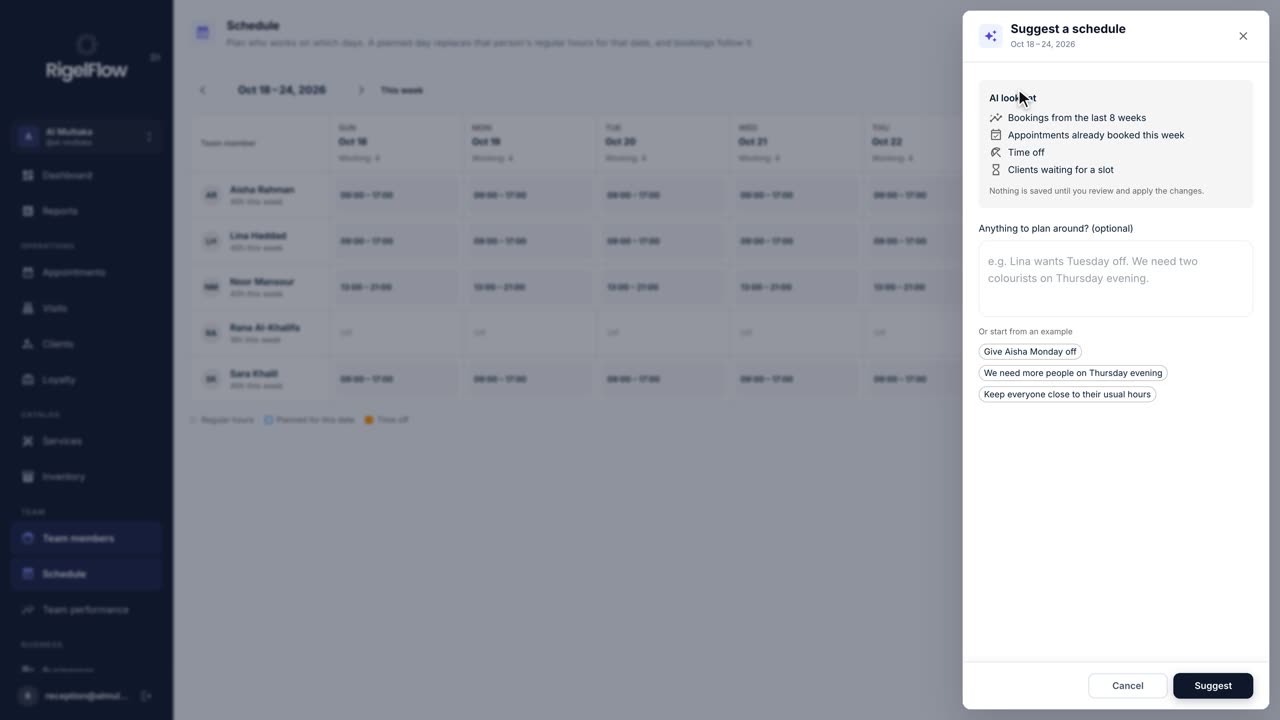
Plan your team’s schedule with AI
Plan who works each day, give time off without leaving bookings stranded, and let AI suggest a week that fits your bookings.
Watch the guide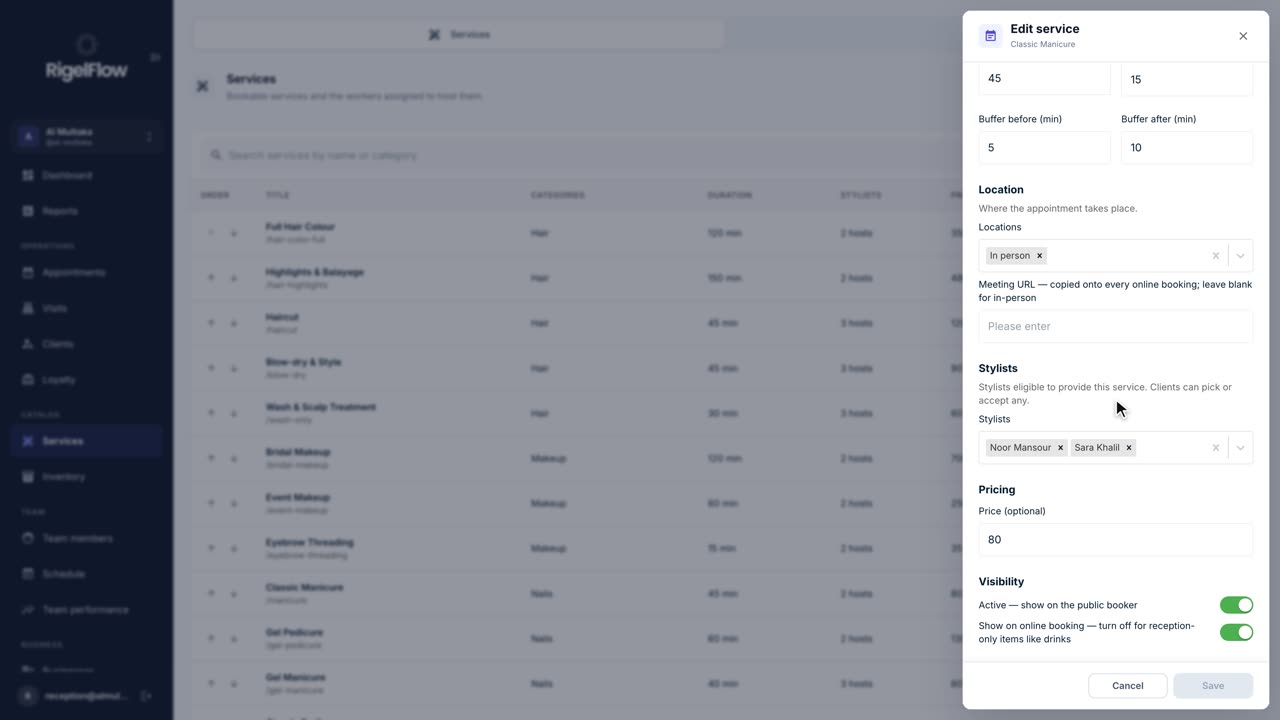 1:50
1:50Set up your business2 min
Add and manage your services
Set up everything clients can book: prices, durations, who offers each service, categories, treatment order and add-ons.
Watch the guide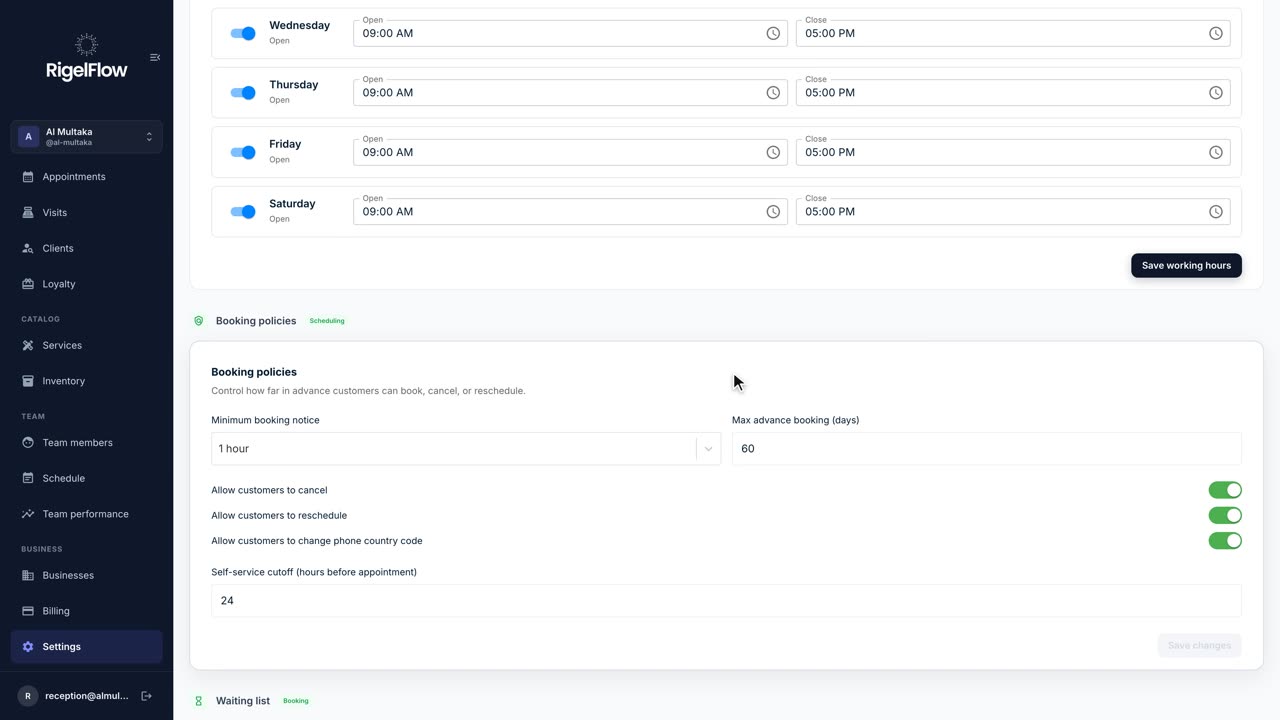 2:11
2:11Set up your business2 min
Set up your business in Settings
Your profile, branches, opening hours, booking rules, tax, payments, WhatsApp and team options, all in one place.
Watch the guide