

Plan your team’s schedule with AI
Plan who works each day, give time off without leaving bookings stranded, and let AI suggest a week that fits your bookings.
Open Team, then Schedule. Each row is a team member and each column is a day. Days planned for one date show in blue, and the rest follow regular hours.
Step by step
- 1Step 1
Open the schedule
From the menu, open Team, then Schedule.
- 2Step 2
Read the grid
Each row is a team member, each column a day. Blue days are planned for that date; the rest follow regular hours. Use the arrows to plan the weeks ahead.
- 3Step 3
Change one day
Click a person’s day to change it. Here, Lina asked for next Wednesday off.
- 4Step 4
Know what a day off does
Turning a day into a day off takes one click, but their booked appointments stay and still need moving.
- 5Step 5
Adding time fills slots
When you add time, clients on your waiting list get a WhatsApp offer.
- 6Step 6
Ask the AI
Click Suggest with AI. It looks at eight weeks of bookings, this week’s appointments, time off, and clients waiting for a slot. Tell it what to plan around, then click Suggest.
- 7Step 7
Review the suggestion
You get a short summary, then each suggested change by team member. Here, Rana works Thursday afternoon for a bridal party.
- 8Step 8
See what’s blocking a change
If a change can’t be applied, the AI shows why: here, two appointments would be left without a stylist.
- 9Step 9
Check hours and waiting list
Below, see how staff hours change, and which waiting-list clients get a WhatsApp offer for the new times.
- 10Step 10
Apply it
Apply the change. The schedule is saved, and matching waiting-list clients get their offer.
- 11Step 11
Free up a day
To clear someone’s day, open Appointments and switch to Stylists.
- 12Step 12
Open the booking
Go to the date and open the appointment. Click Reschedule.
- 13Step 13
Move it
Pick another stylist, keep the time, and click Move appointment. The booking keeps who moved it and where it was before.
- 14Step 14
Ask again
Move the rest, then ask the AI again. The day off can now be applied.
Related guides
 1:03
1:03Set up your business1 min
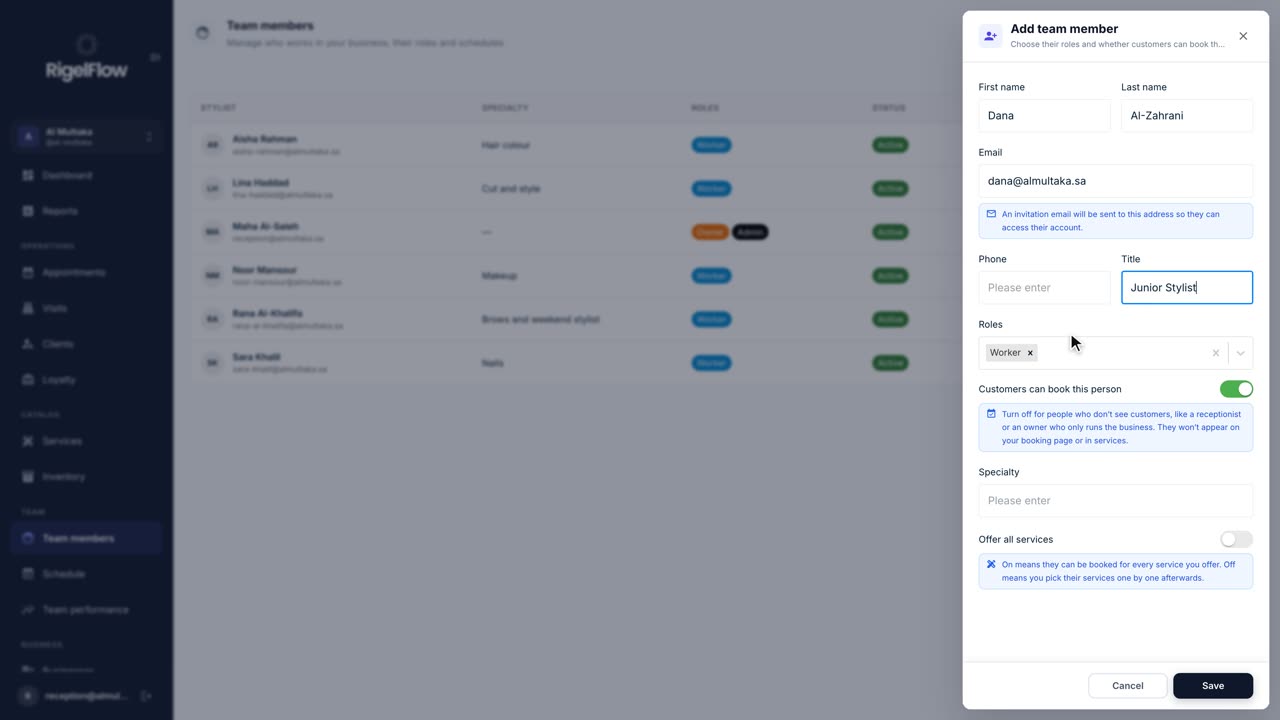
Add team members and set their hours
Invite your staff, choose their roles, and set the working hours and time off that decide when clients can book them.
Watch the guide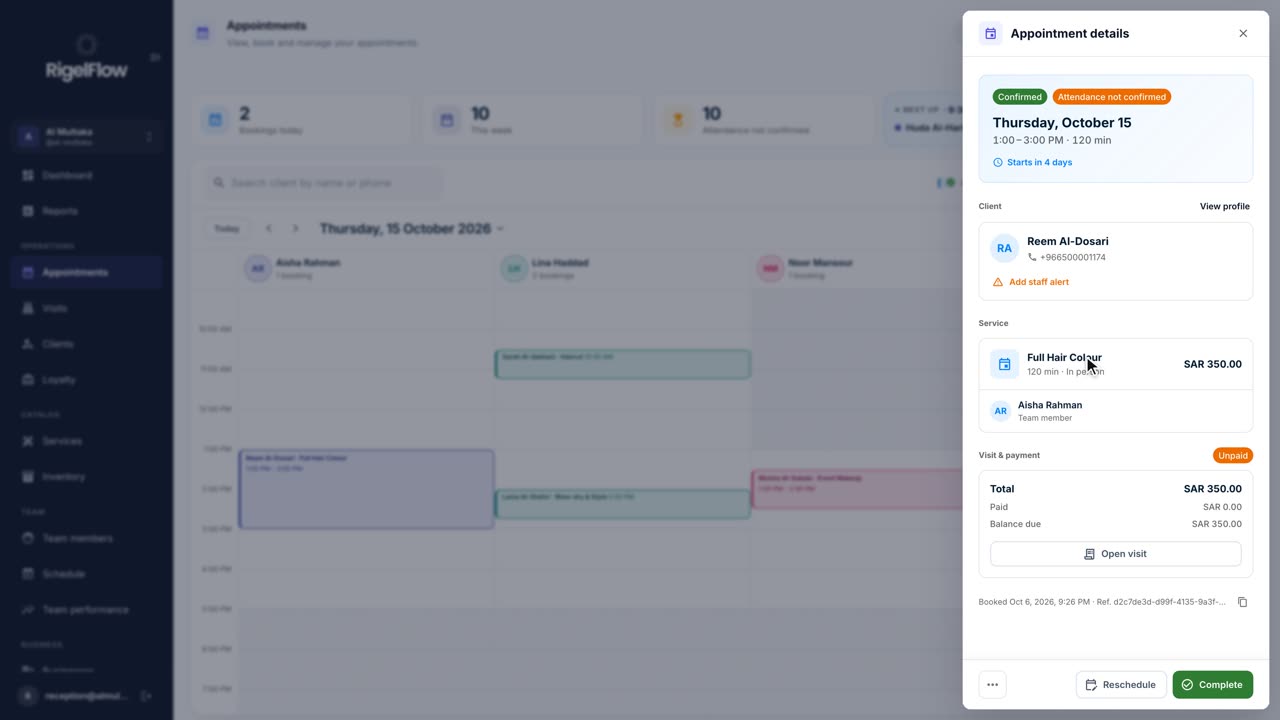 2:05
2:05Bookings and calendar2 min
Manage appointments in the calendar
See your day at a glance, switch between calendar, stylist and list views, and reschedule, complete or cancel any booking.
Watch the guide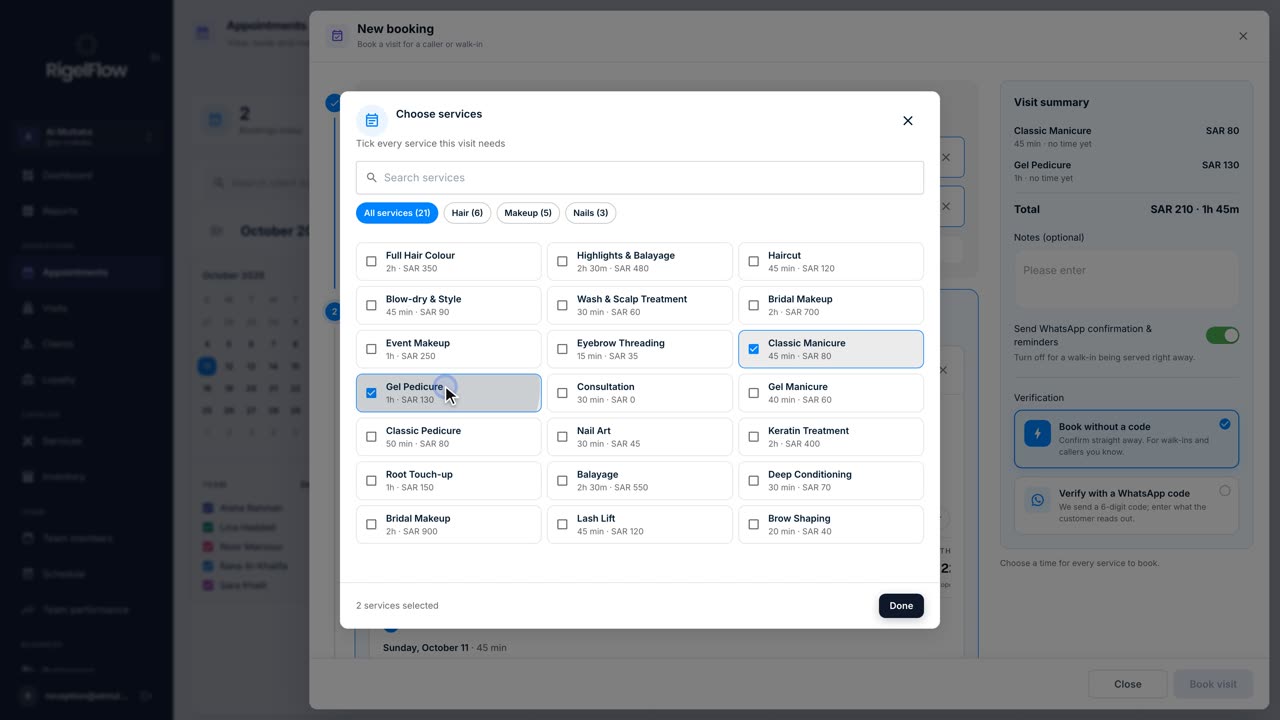 1:26
1:26Bookings and calendar1 min
Make a new booking
Book one or more services for a client, pick the team member and time, set up repeat visits, and send the WhatsApp confirmation.
Watch the guide