

Sell prepaid session packages
Let a client pay once for several sessions, like three colours, then use one session at each visit.
Prepaid packages let a client pay once for several sessions and use them over the coming weeks. It takes three steps: create the package, sell it as a gift card, then use a session at each visit.
1. Create the package
- 1Step 1
Start a new package
Go to Services, open the Packages tab, and click New package.
- 2Step 2
Choose Prepaid sessions
It’s sold as a gift card, so clients can’t book it online. They book each visit as usual, and the card pays at checkout.
- 3Step 3
Name it
Give it a name in English and Arabic.
- 4Step 4
Pick the services
Choose the services it includes, like a full colour and a blow-dry.
- 5Step 5
Set the sessions and validity
Set how many sessions of each, like three colours and five blow-drys, and how many days a card sold from it stays valid.
- 6Step 6
Set the price
Set what the client pays. The preview shows how it’s split across the services, and how much the client saves.
- 7Step 7
Save it
Prepaid packages are tagged in the list, so you can tell them apart.
2. Sell it
- 8Step 8
Sell it as a gift card
In Gift cards, click Sell gift card and pick the package. The price and expiry date are filled in.
- 9Step 9
Choose the client
A package is usually for the client themselves, so switch on buying it for themselves and find them on file.
- 10Step 10
Take payment
Choose how they paid, and sell. The card now shows every session that’s left.
3. Use a session at each visit
- 11Step 11
How it pays
At checkout, the card pays for one session of each service it covers. Anything outside the package is paid as usual.
- 12Step 12
Redeem in the visit
Open the client’s visit and click Redeem gift card.
- 13Step 13
Use the card
The package card is listed with the sessions left. Click Use, and confirm.
- 14Step 14
Pay the rest
The service is priced at its session value and paid from the card. Only what’s left is paid as usual.
- 15Step 15
Check the invoice and card
The invoice shows the package by name, and the card has one session less.
Good to remember
- Clients still book each visit as usual.
- The card stops working on its expiry date.
- Voiding the payment gives the session back.
- A package’s type can’t change once it’s saved.
Related guides
 1:55
1:55Gift cards and packages2 min
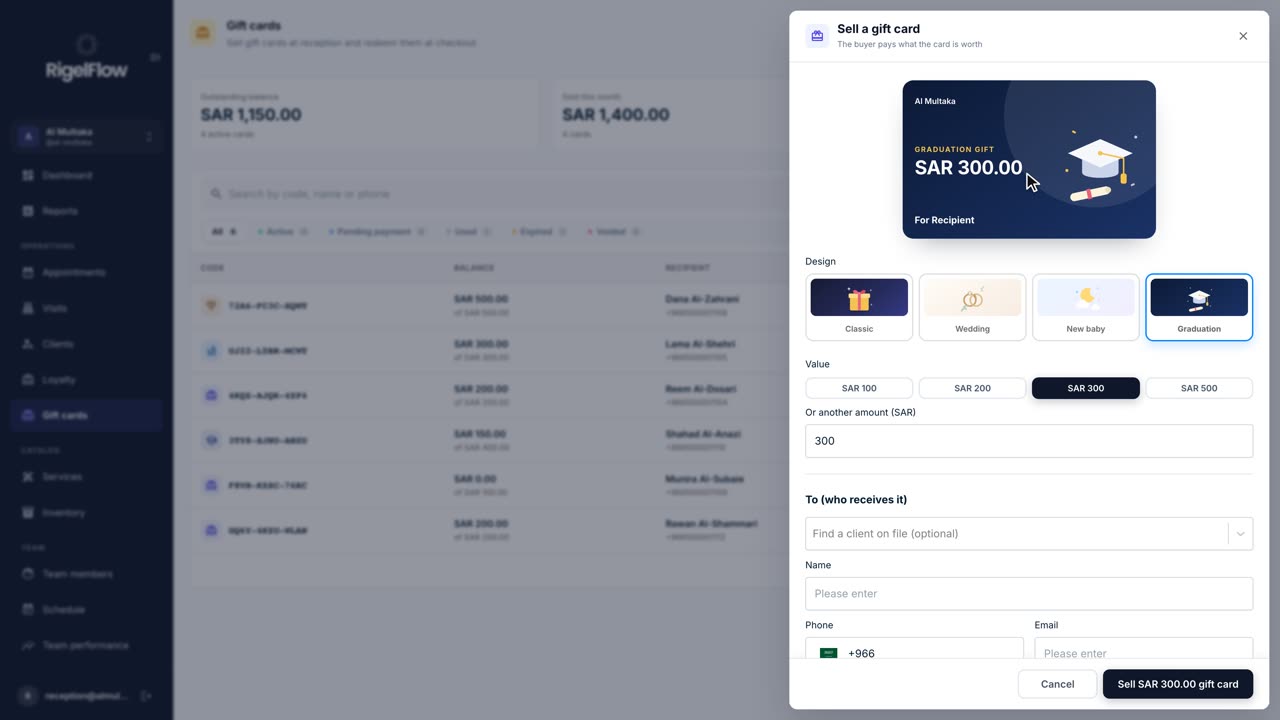
Sell and redeem gift cards
Sell a gift card in any design and amount, send it on WhatsApp, and use it to pay for a visit at checkout.
Watch the guide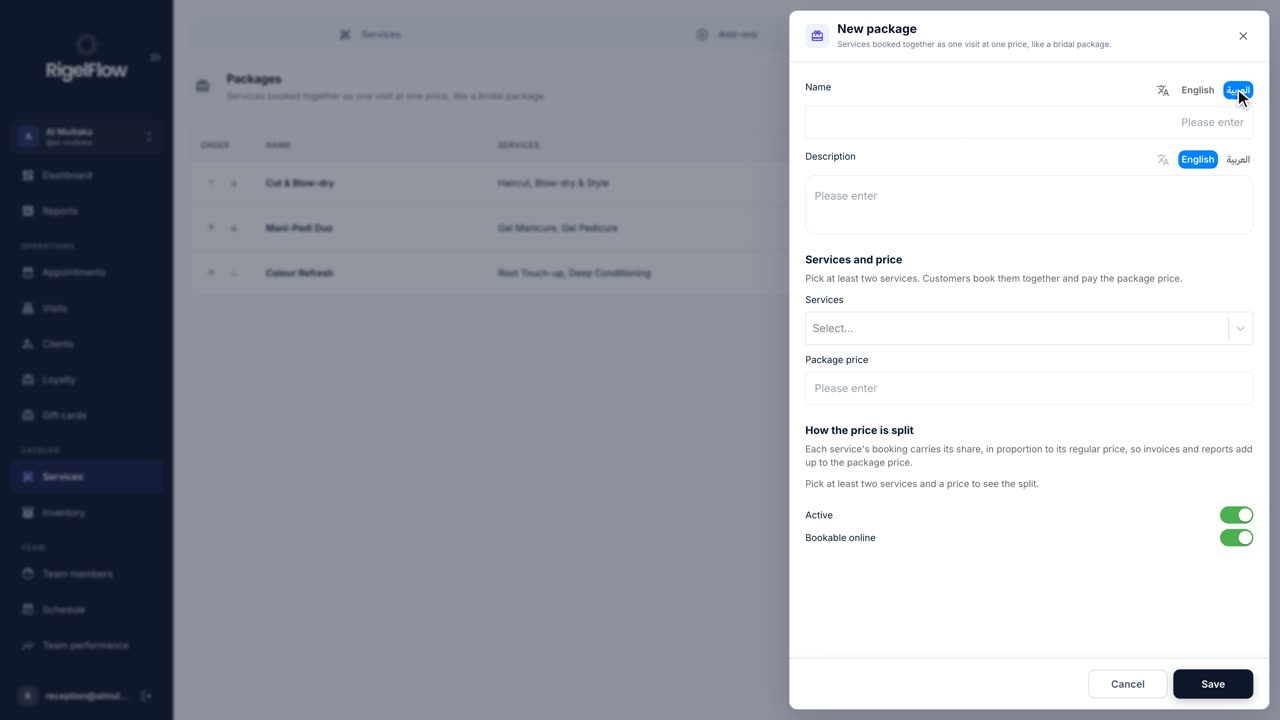 1:27
1:27Gift cards and packages1 min
Create service packages
Bundle services clients book together at one price, like a bridal package, and offer them at reception and online.
Watch the guide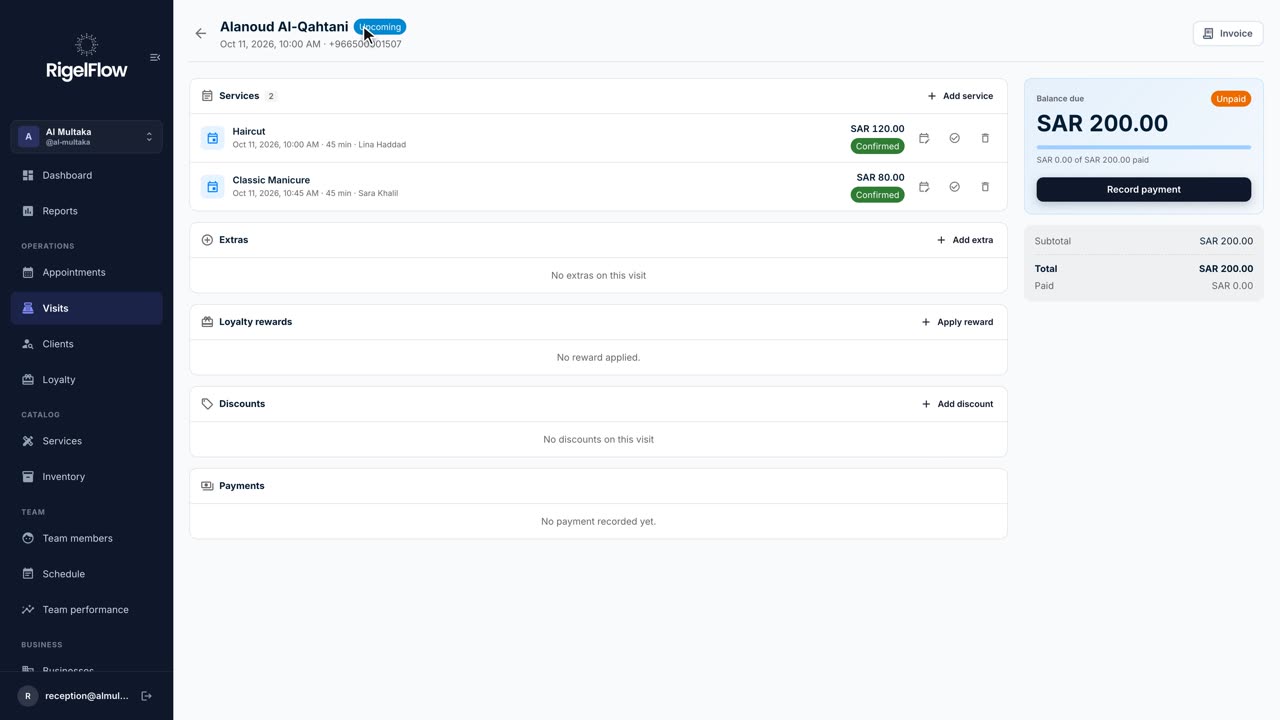 2:46
2:46Visits and payments3 min
Take payment, invoice and refund a visit
Add services and discounts, record full or part payments, issue a ZATCA tax invoice, and refund with a credit note.
Watch the guide